Sharing a Tour Report
Once a tour report has been generated, it can be shared with colleagues, suppliers, or other stakeholders through a public link or email. Reports can also be exported as a Microsoft Word document for offline distribution.
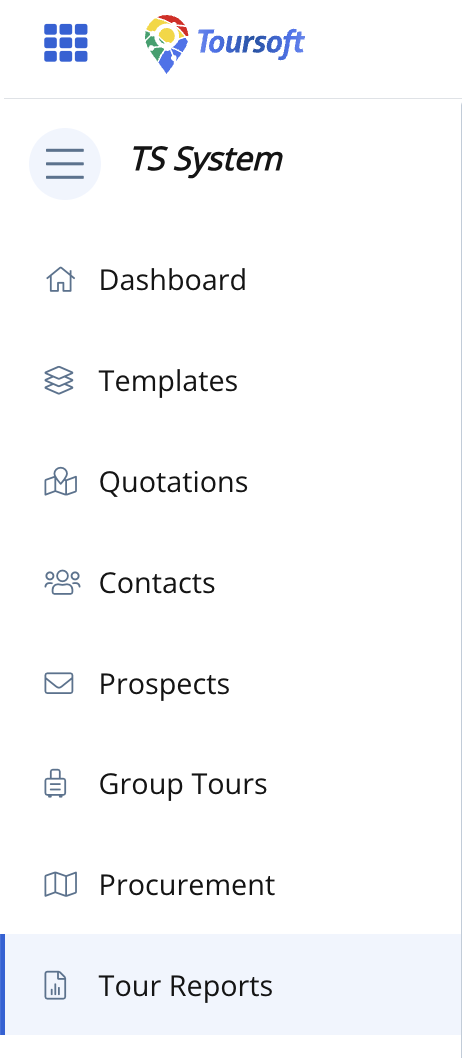
1. From the left navigation menu, click Tour Reports.
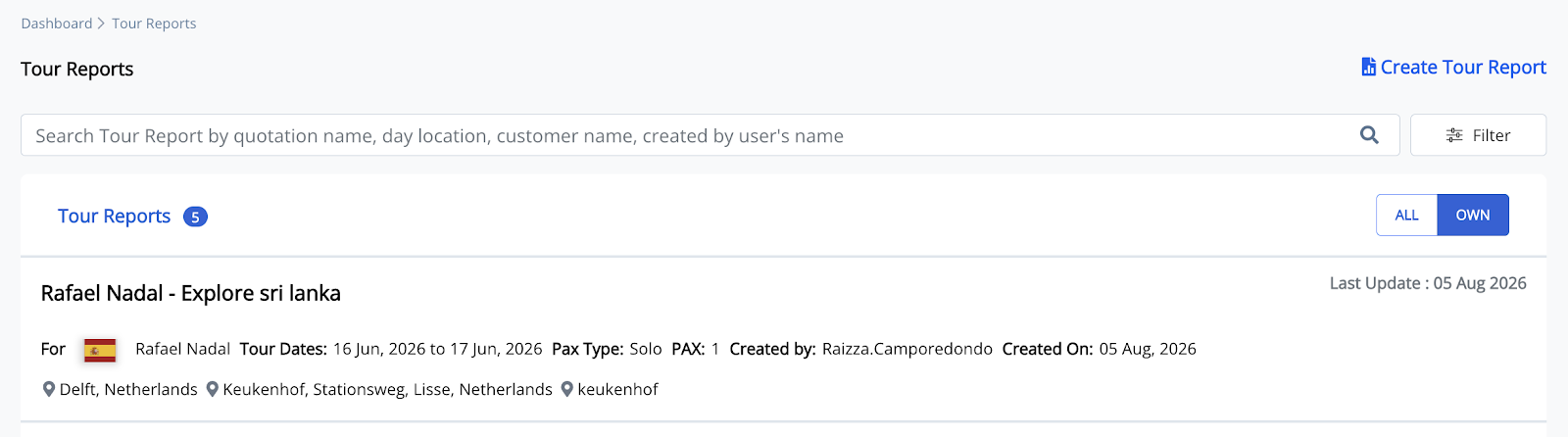
Open the tour report where you want to add a Travel Overview report.
2. Open the Quotation you want to generate the report
The available report types will be displayed.
3. Click the three lines on the upper right side of the report you want to share.
Select "Share"
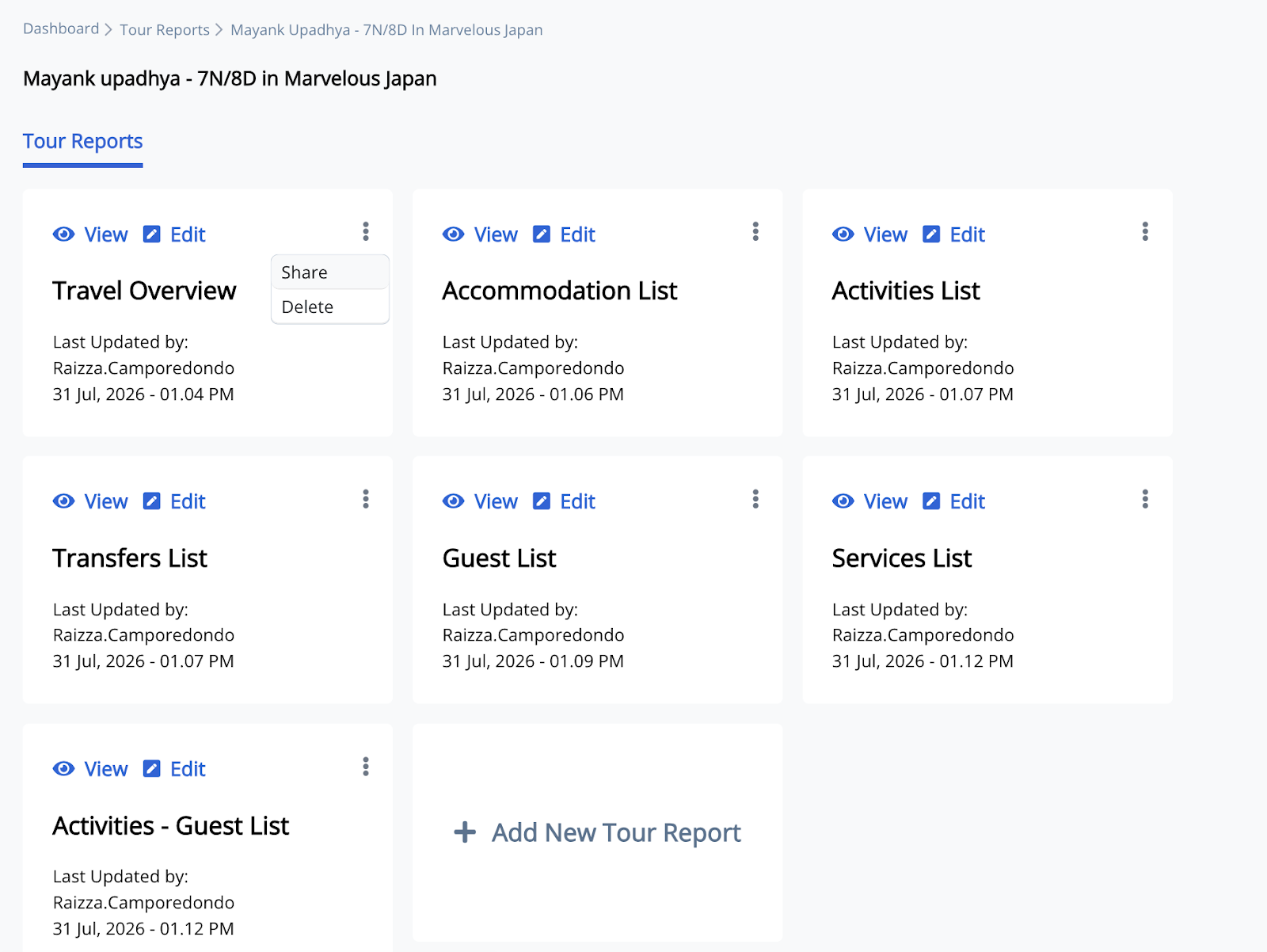
4. Click Share to open the sharing options.
A pop-up will appear with options to Generate Public Link, View, Word, or send the report directly to a customer by email. You can choose the sharing method that best suits your needs.
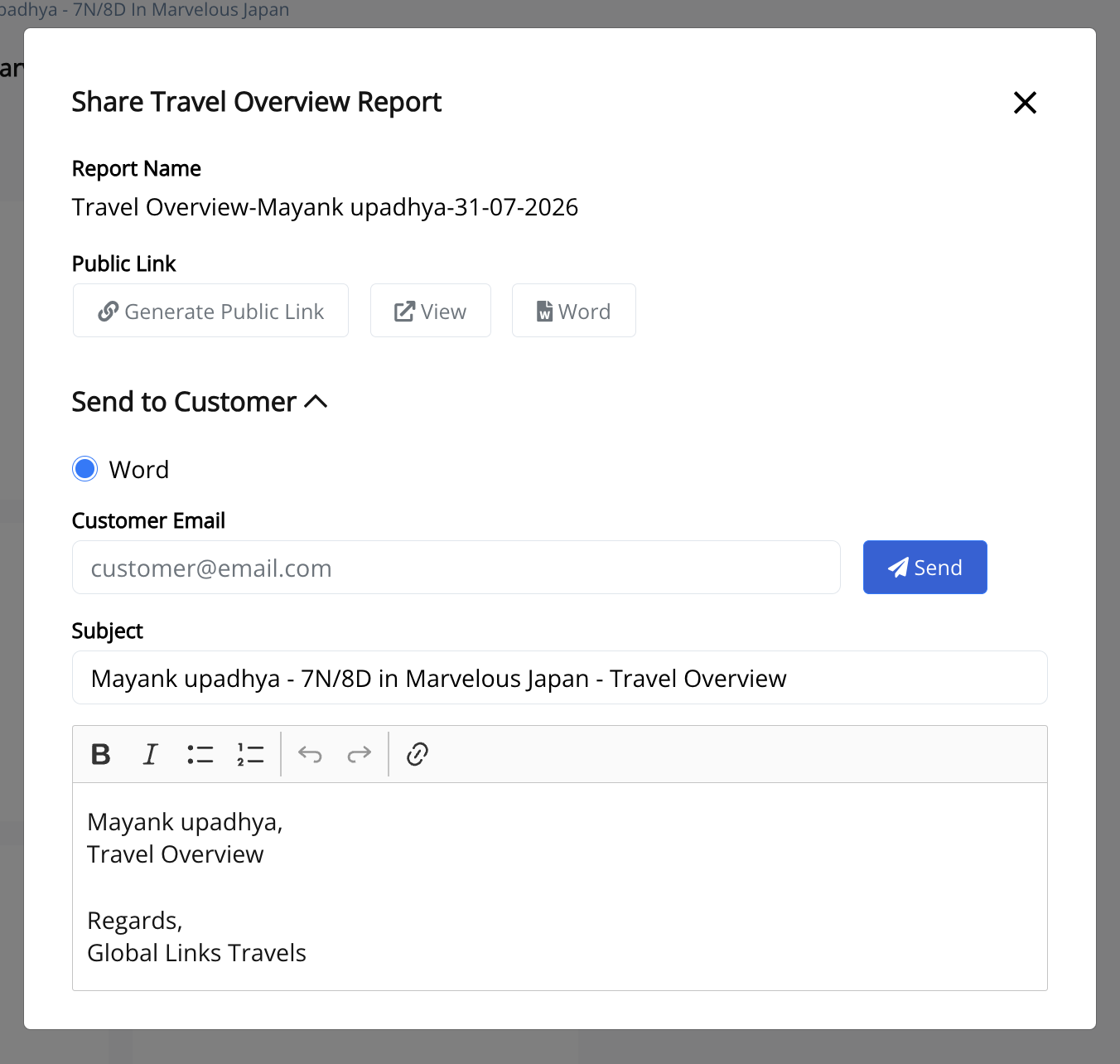
5. Choose your preferred sharing method.
You can generate a Public Link to share the report online, select Word to export the report as a Word document, or send it directly to a customer by entering their email address.
6. If sending by email, enter the customer’s email address.
Review the subject and message, then click Send to email the report.
Note: You can either export the report as a Word document and print it for endorsement to guests, staff, or suppliers, share it by email, or generate a public link for recipients to access the report online.