Adding Customer Bookings to a Group Tour
After creating a Group Tour, you can begin adding customer bookings. Customer bookings allow you to manage traveler information, payments, invoices, and booking status within the selected group tour.
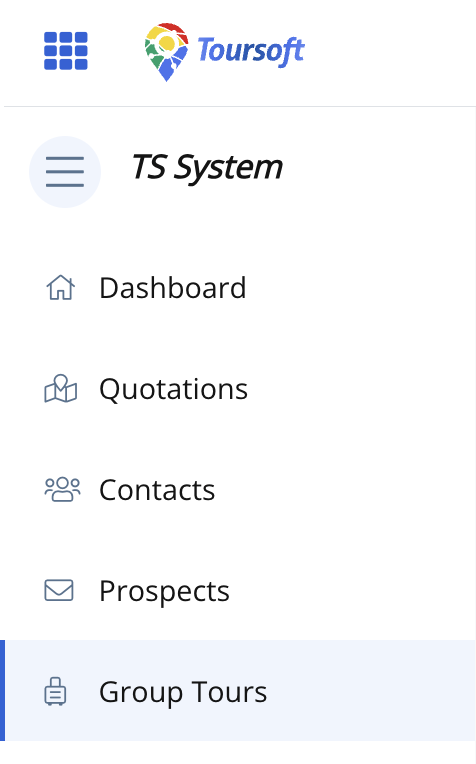
1. From the left-hand sidebar, select Group Tours.
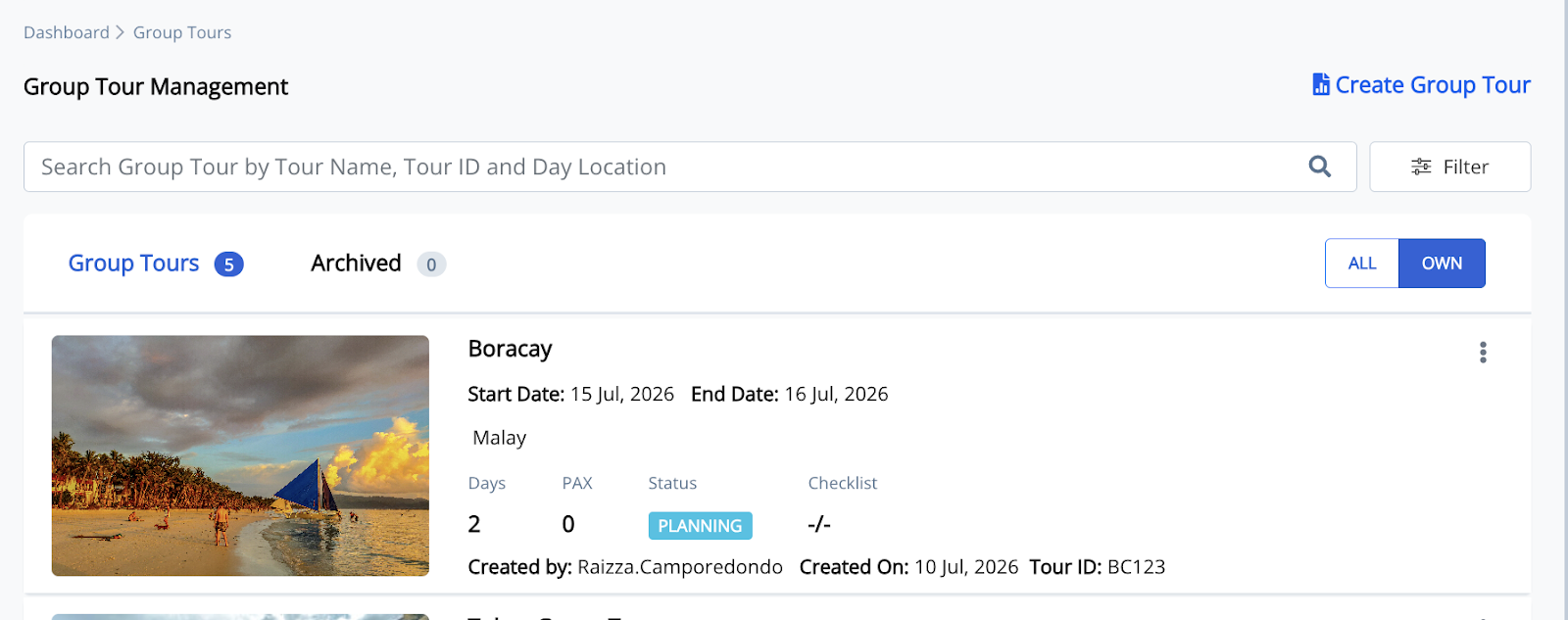
2. Open the Group Tour you want to manage.
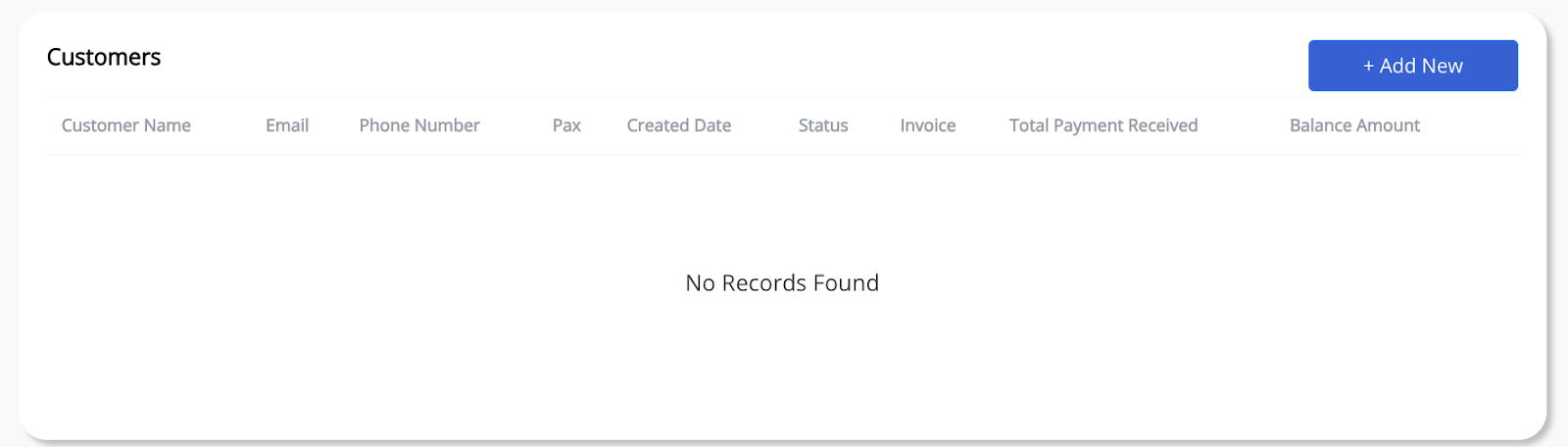
3. In the Customers section, click + Add New.
4. Select an existing contact from the list, or click Add New Contact to create a new customer.
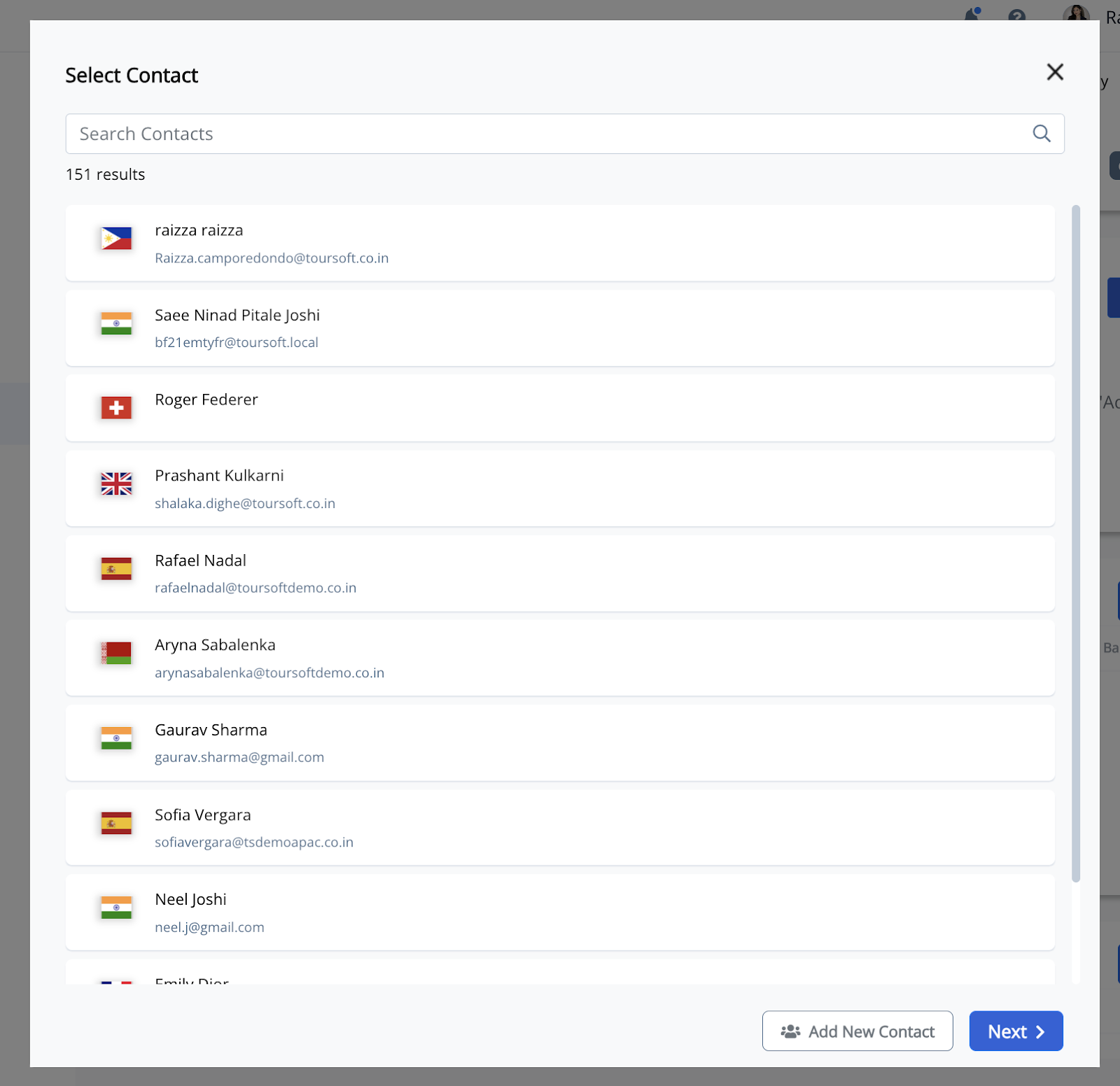
5. Once you've selected the customer, click Next to continue with the booking process.
The customer booking will be added to the Group Tour and will appear in the Customers list.
Note:
Once a customer has been added, you can generate invoices, record payments, and monitor outstanding balances directly from the Customers section.