Uploading External Documents in Procurement
The Documents tab allows you to upload and manage files related to a procurement record. You can upload documents for customers or internal use, making it easy to keep all supporting files in one place.
1. Login to Toursoft using your email address and password.

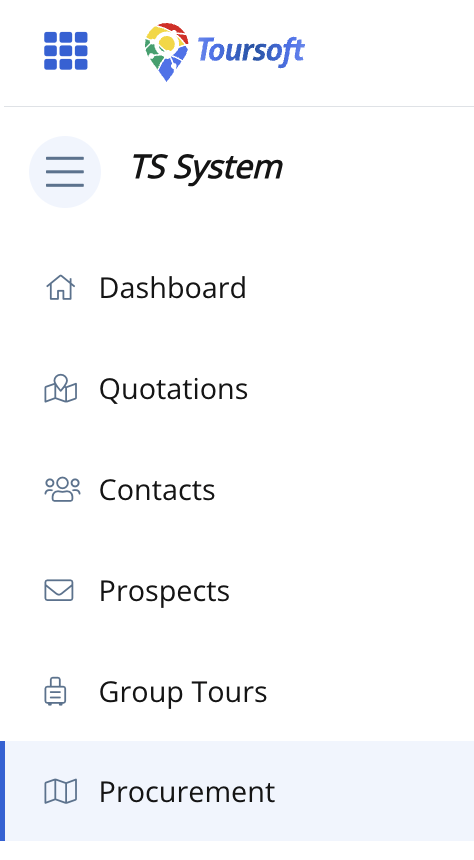
2. From the left-hand sidebar, select Procurement.
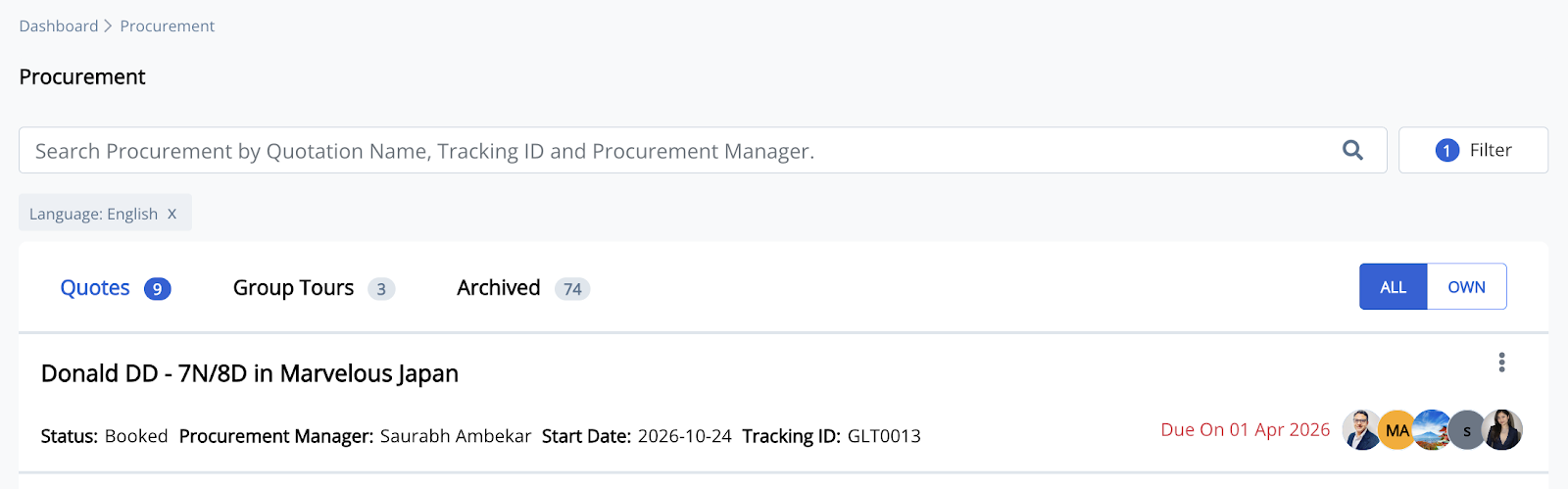
3. Open the procurement record you want to manage.
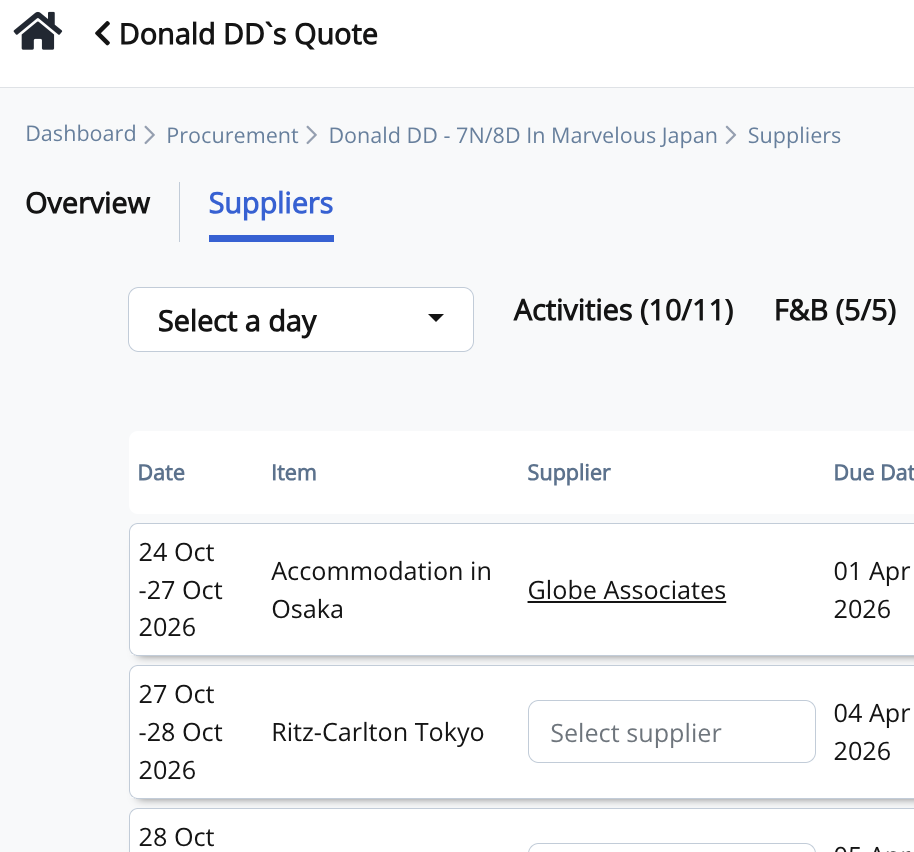
4. Click the supplier's name to open the Activity Procurement window.
5. Select the Documents tab.
Here you can view all files that have already been uploaded for the selected procurement, including the file name, upload type, uploader, and download option.
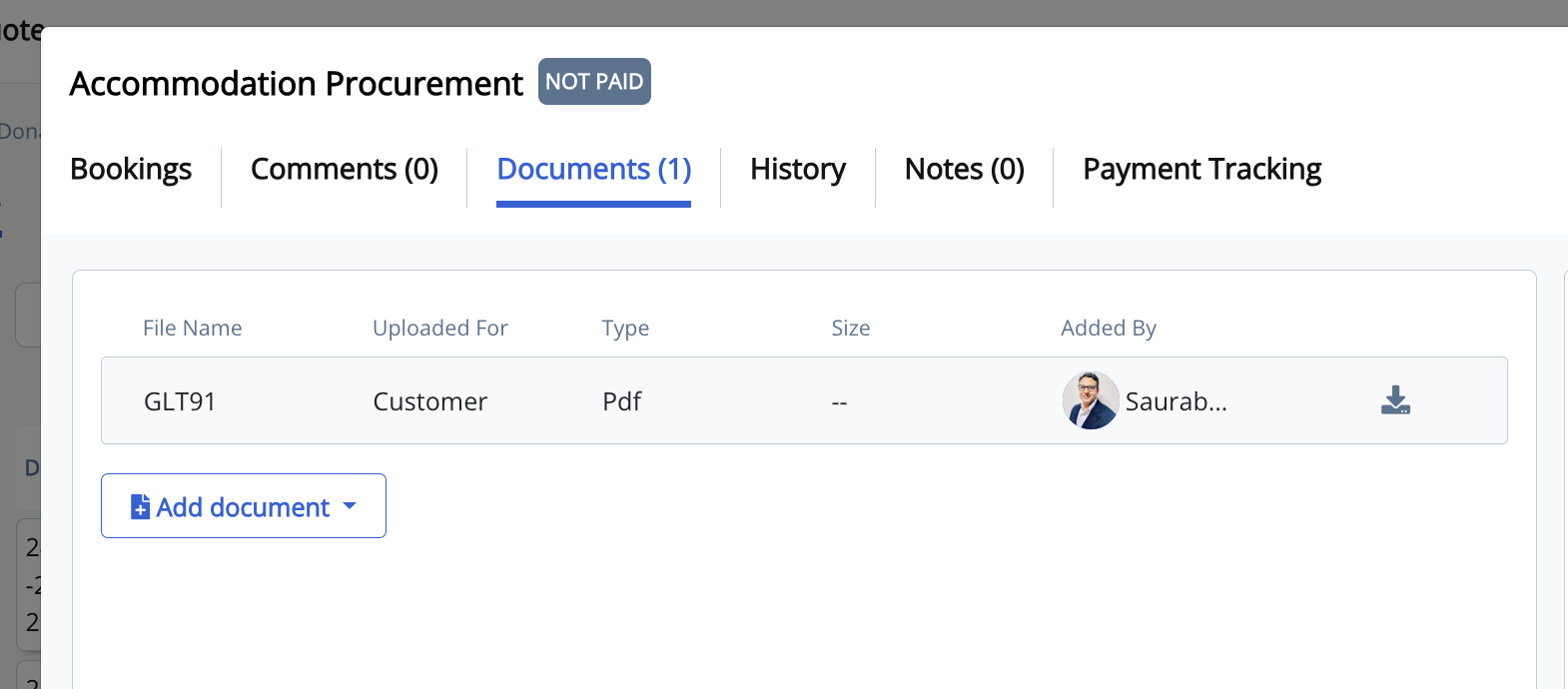
6. Click + Add document.
A menu will appear with two upload options:
- For Customer – Upload documents that can be shared with customers, such as vouchers, confirmations, or booking-related files.
- For Internal Use – Upload documents intended only for internal reference, such as supplier invoices, quotations, contracts, receipts, or supporting documents.
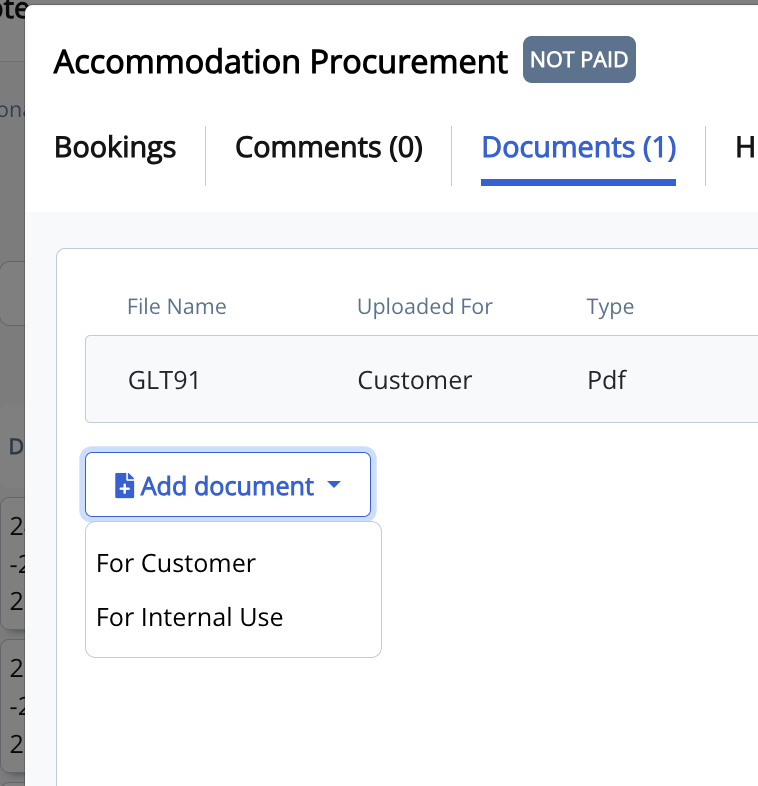
7. Select the appropriate upload type and choose the file from your device.
After the upload is complete, the document will be added to the list and will be available for future reference.
Note: Organizing procurement documents within the Documents tab helps keep all customer and internal files attached to the correct procurement record, making them easy to access whenever needed.